Email Setup
Email Setup lets admins configure the SMTP settings used by a team. It is available from Team & Project Management and from project-level team management pages.
Why it matters / Use Cases:
- Teams can send email from the correct sender address.
- SMTP settings can be tested before they are saved.
- Each team can have its own email configuration.
- Admins can update credentials without changing unrelated project or team settings.
- Project-level and super-admin workflows use the same basic email fields, so the setup process stays consistent.
Prerequisites
- Access to ZeuZ Server with permissions for Admin → Team & Projects → Manage Team & Project, Project → Manage → Dashboard and Project → Manage → Teams.
- You must have access to the project or team email setup action.
- The project must have at least one linked team.
- You need the SMTP host, port, sender address, and any required username or password.
- If your email provider requires secure transport, know whether the TTLS switch should be enabled.
Quick-Start
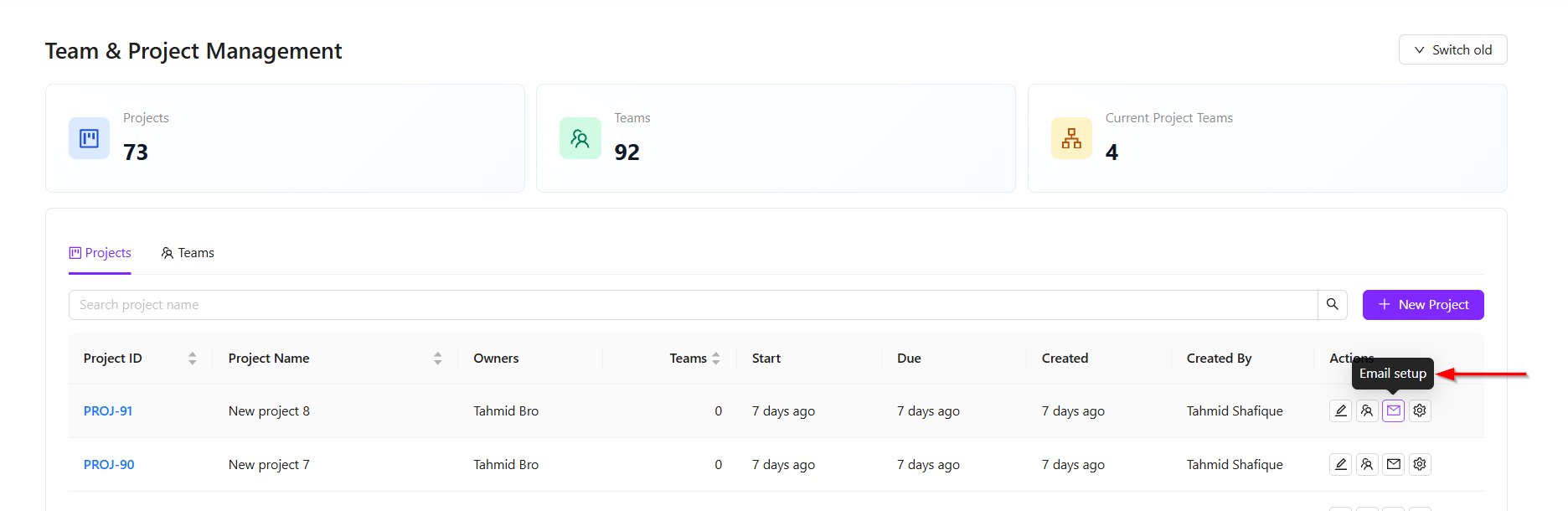
- Click on the Email Setup button available on the "Team & Project Management" page.
Features
Opening Email Setup
-
Email Setup can be accessed from:
- Team & Project Management: Select the Email setup action on a project row, then choose the team inside the modal.
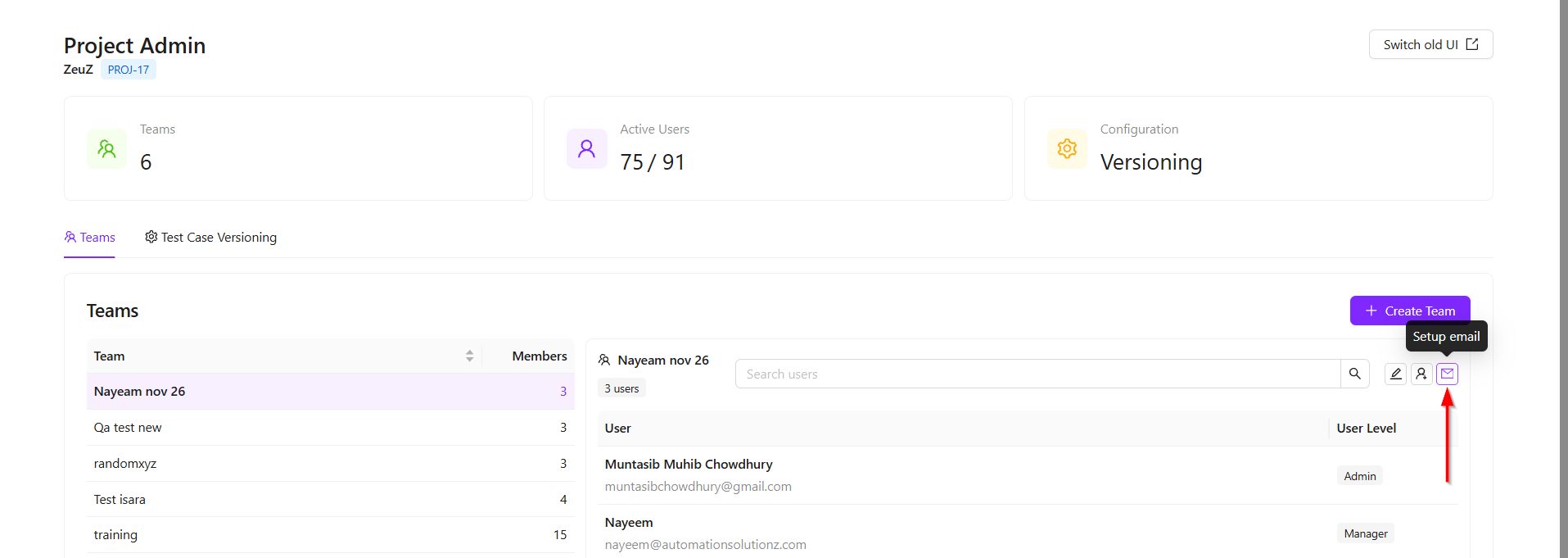
- Project Admin Dashboard: Select a team, then use the email action in the team details panel.
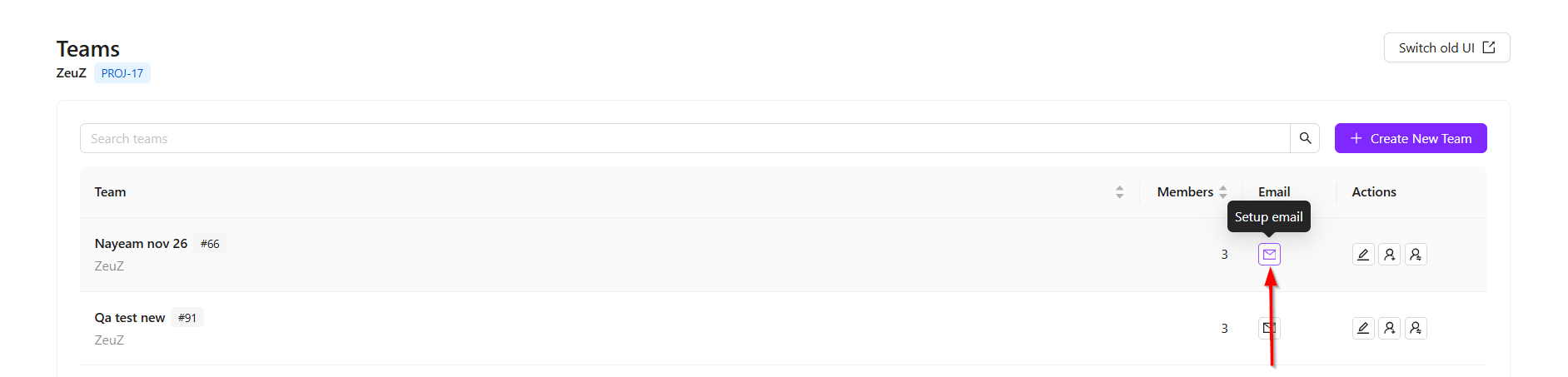
- Project Team Management: Use the email action for a team row.
Team Selection
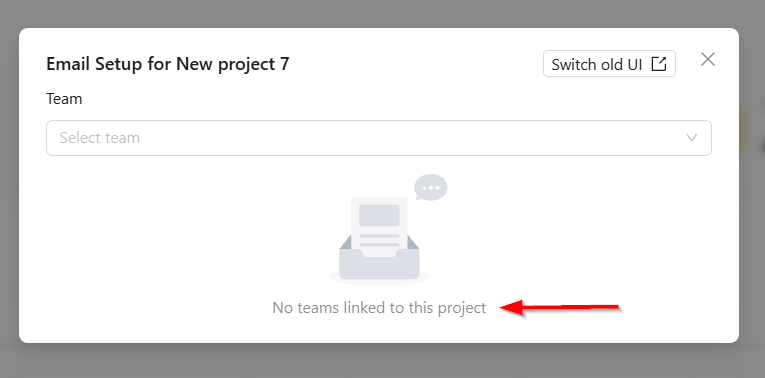
- In Team & Project Management, Email Setup first asks you to select a team linked to the project. If the project has no linked teams, the page shows
No teams linked to this project. - In project-level pages, the team is already determined because Email Setup is opened from a specific team.
Email Fields
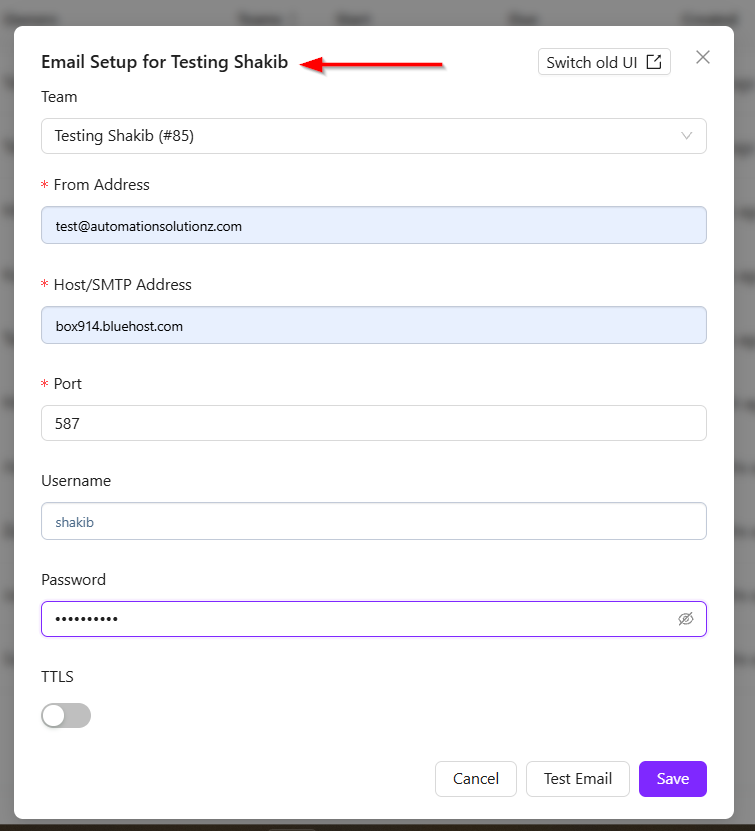
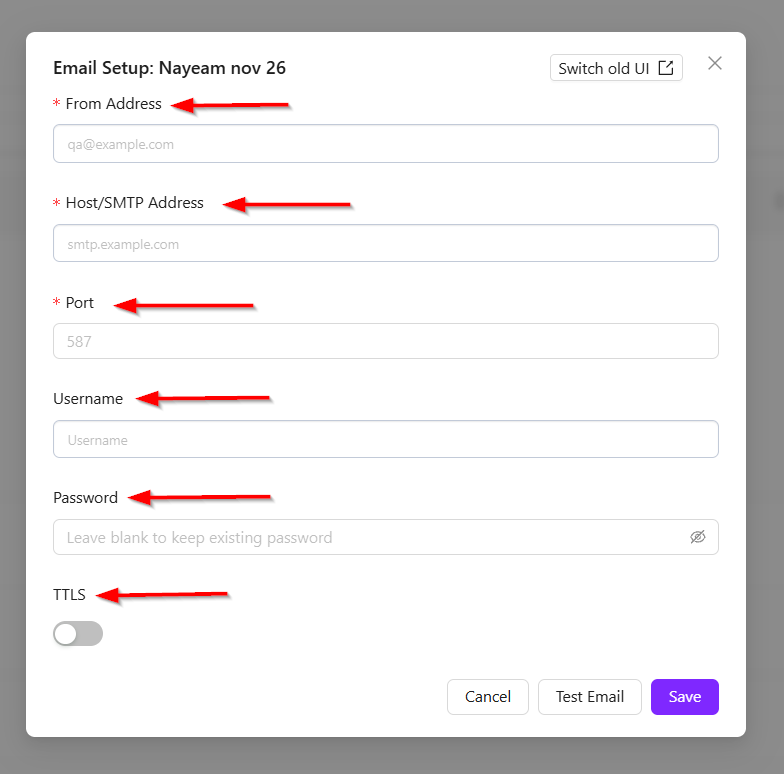
- The form includes the following:
- From Address: The sender email address
- Host/SMTP Address: The SMTP server address.
- Port: The SMTP port number.
- Username: The SMTP username, if required.
- Password: The SMTP password, if required.
- TTLS: Switch this on or off based on your email provider’s security requirements.
note
From Address, Host/SMTP Address, and Port are required fields.
Password Handling
- If a password already exists, leave the Password field blank when you do not want to change it. Enter a new password only when the SMTP password needs to be updated.
Test Email
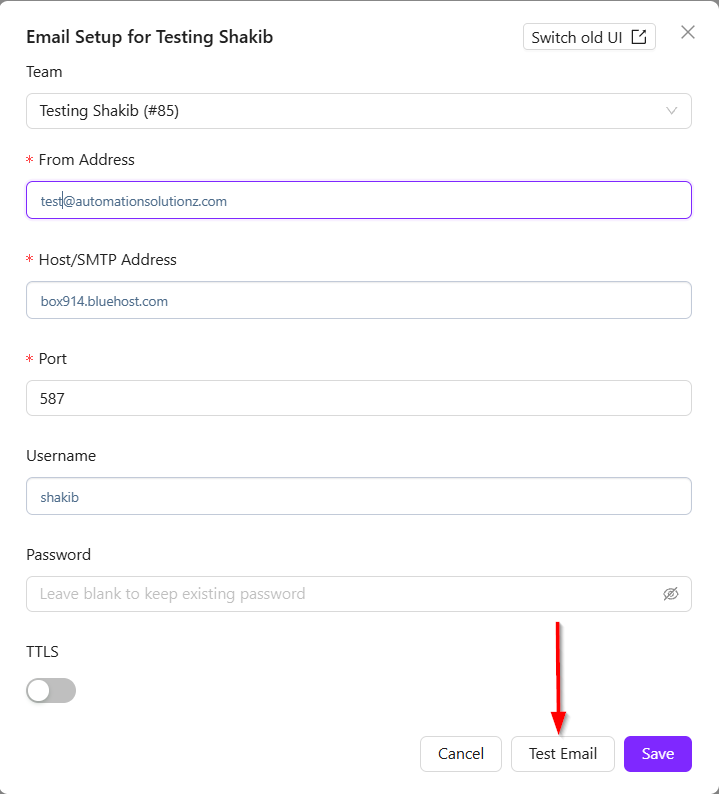
- Select Test Email to validate the current form values before saving. ZeuZ displays a success message if the test email is sent successfully, or an error message if the SMTP test fails.
Save Email Setup
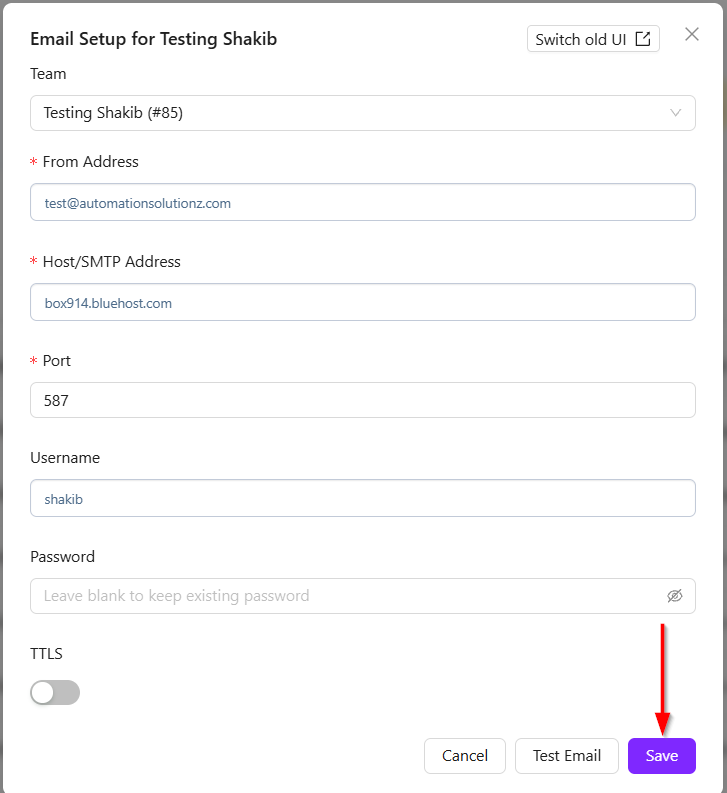
- Select Save to store the email configuration for the selected team. Saving updates only that team's email setup.
FAQs / Troubleshooting
FAQs
Is email setup configured per project or per team?
Email setup is configured per team inside a project.
Email setup is configured per team inside a project.
No. Test Email checks the values currently entered in the form.
Can I keep the existing password?
Yes. Leave the Password field blank if you do not want to replace the existing password.
Why do I need to select a team in Team & Project Management?
The project-level email action is team-specific, so you must choose which linked team should receive the SMTP configuration.
Troubleshooting
- No teams are available: Link at least one team to the project first.
- From address is rejected: Use a valid email address.
- Test email fails: Confirm SMTP host, port, username, password, sender address, and TTLS setting.
- Save fails: Fill in all required fields and confirm that you still have permission to update the email setup.
- Email works for one team but not another: Open Email Setup for the affected team and confirm the team’s settings.
Changelog
- Centralized project, team, user, and project settings management [202605].